Database actions - PAD

  POWER AUTOMATE DESKTOP - DATABASE Pre-Requisites Power Automate Desktop Access to database  Under the database action, we have only three sub actions, namely: Open SQL connection Execute SQL statement  Close SQL connection Open SQL Connection The first step is to connect to the database. So, we will use the Open SQL connection action and provide a connection string to establish the connection (the connection string in the video is a sample). When the connection is successful, the connection details is stored in a variable during execution. Execute SQL statement This action can be used to execute SQL queries. Here, I am using select query and the result is stored in a variable of type datatable. Close SQL connection It is a best practice to always close the database connection once the required queries are executed. YAY! BONUS!😮 How to execute a stored procedure using database action? Stored Procedure without arguments Stored Procedure with arguments (Comma separated in...

Canvas App - PowerApps

Overview Of Canvas App


  • Canvas App is a way for users to easily design a custom-app.
  • We are provided with a Canvas, which are either Mobile or Tablet screen size.
  • To the blank Canvas, we can drag-and-drop UI elements like Button, Textbox, Drop-down, etc.
  • The look-and-feel of these elements can be formatted, like Height, Width, Color, etc.
  • These elements also can be programmed different behaviors/logics and can access different data, by using Connectors and Excel-like formulae/expressions.
  • Canvas Apps are mainly used when there is a requirement for Task-Based or Role-Based apps, where the user doesn't need to have access to the whole Microsoft Suite.

Below are some pictures to get an idea about the Canvas App Editor. You may also Log-in to the Power Platform, Create a Blank Canvas App and play around yourself. [Note: You require a work-school account]


A Tablet screen-sized blank canvas
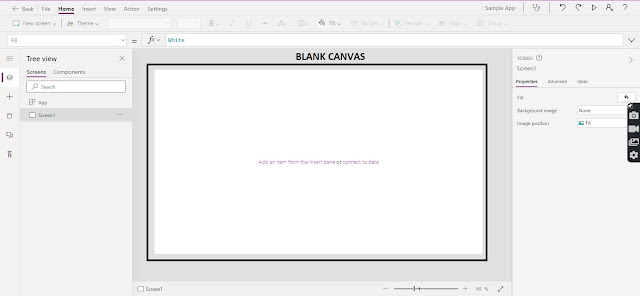
Canvas App Editor


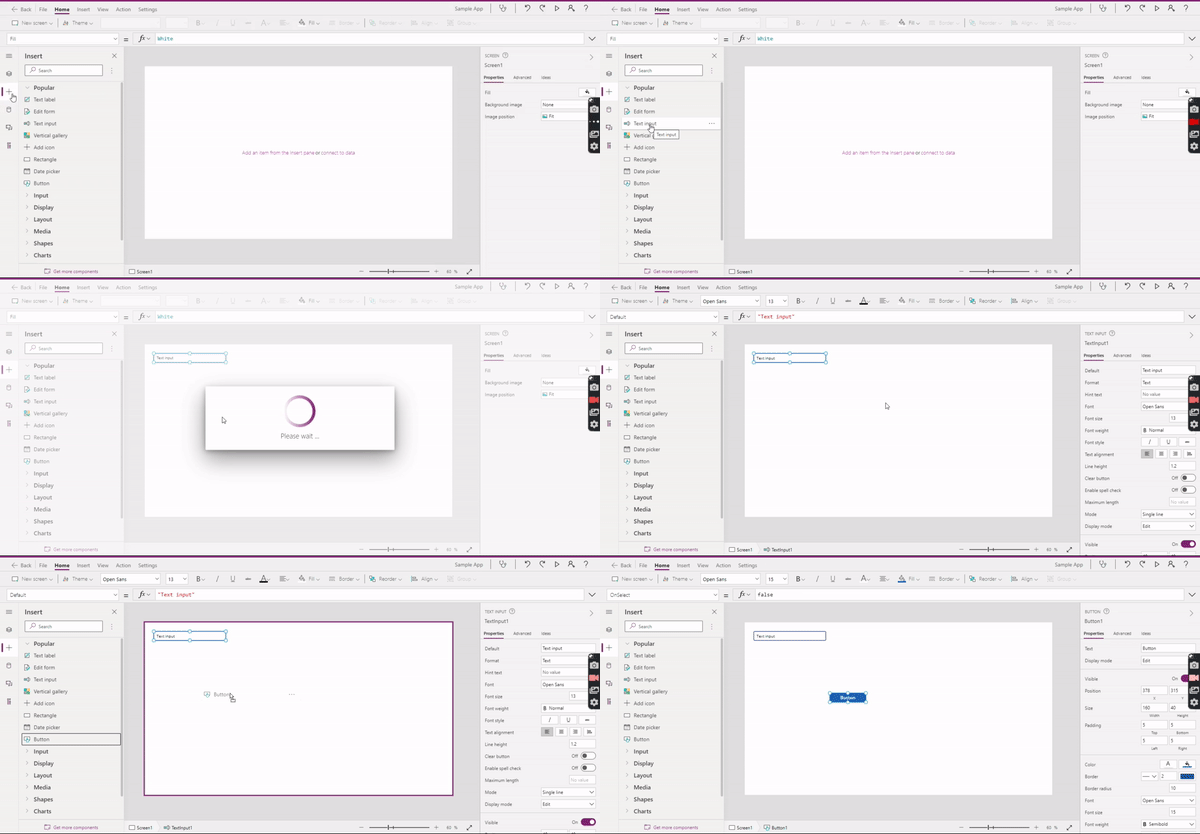
Insert Elements into the blank canvas from the Tree View
Canvas App - Insert Components


Formatting element in the Canvas (Ex: Changing Color of Button) 
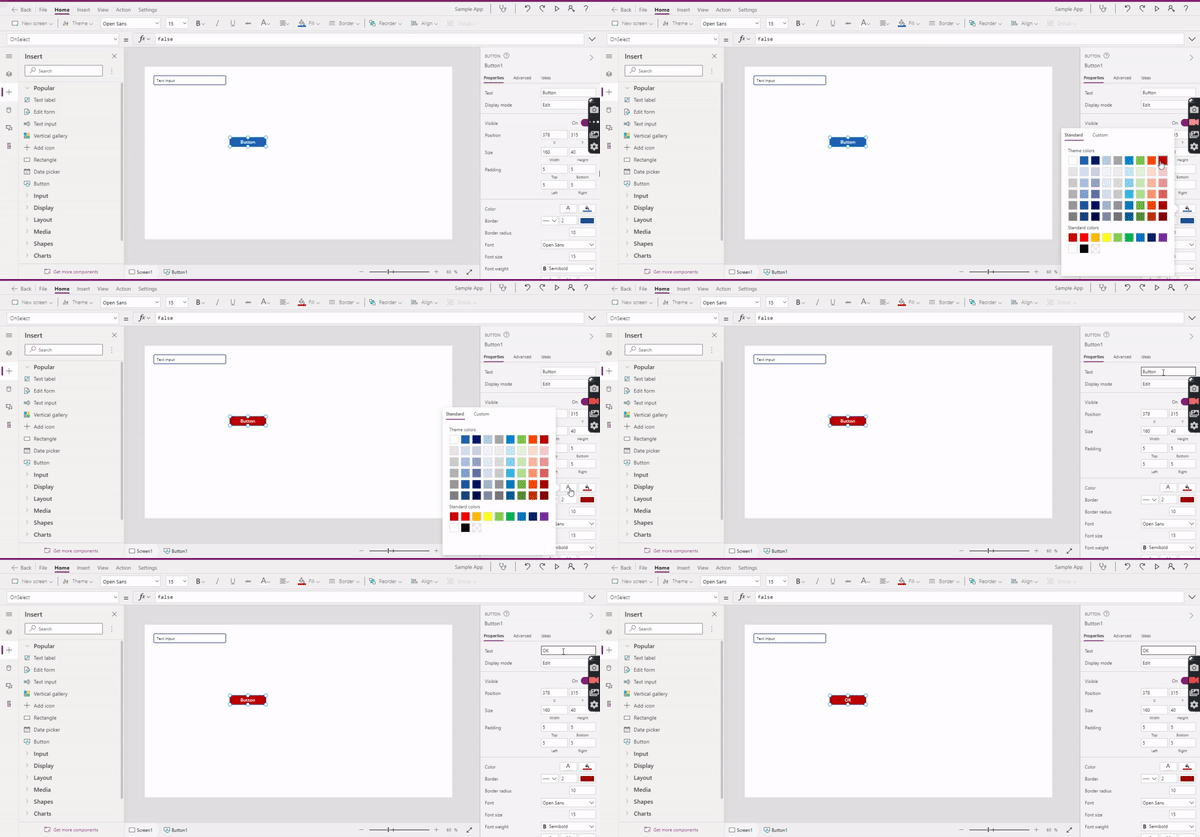
Canvas App - Format Components

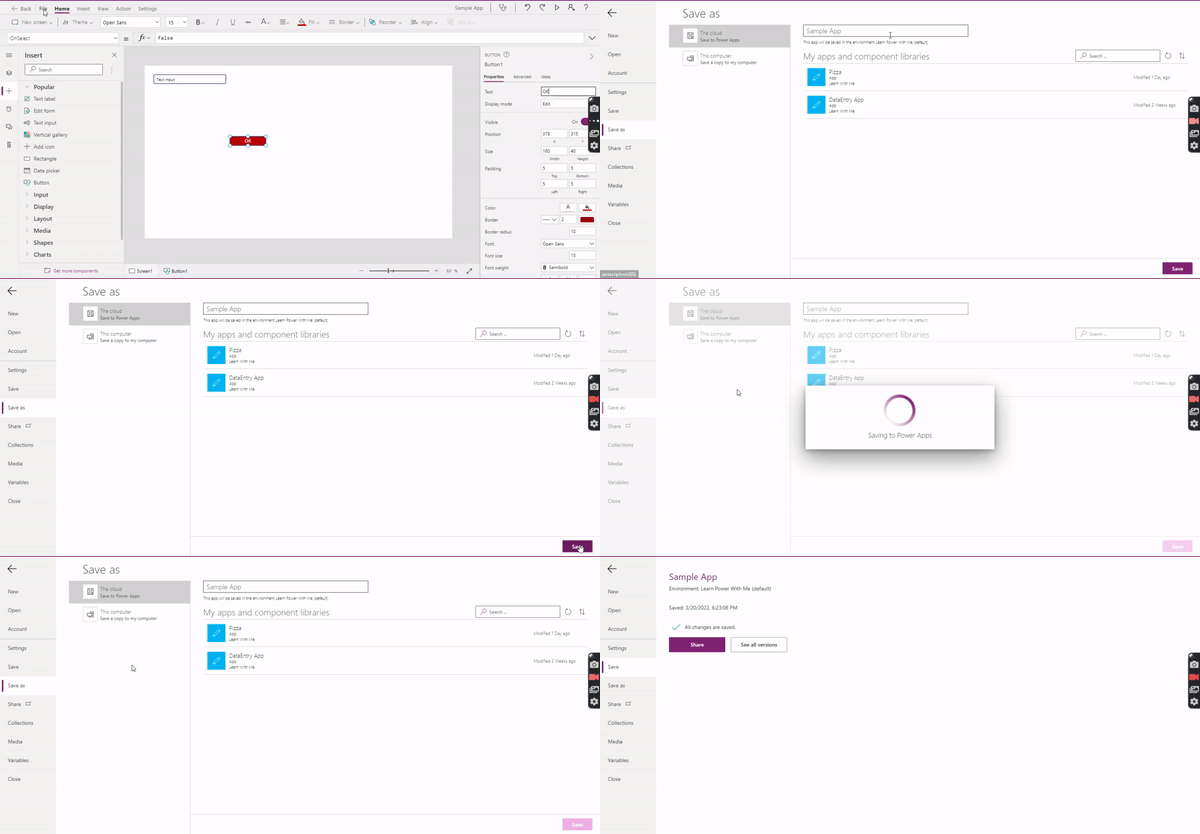
Saving the App in Cloud
Save Canvas App

Preview App (Shows user-view of the App) 
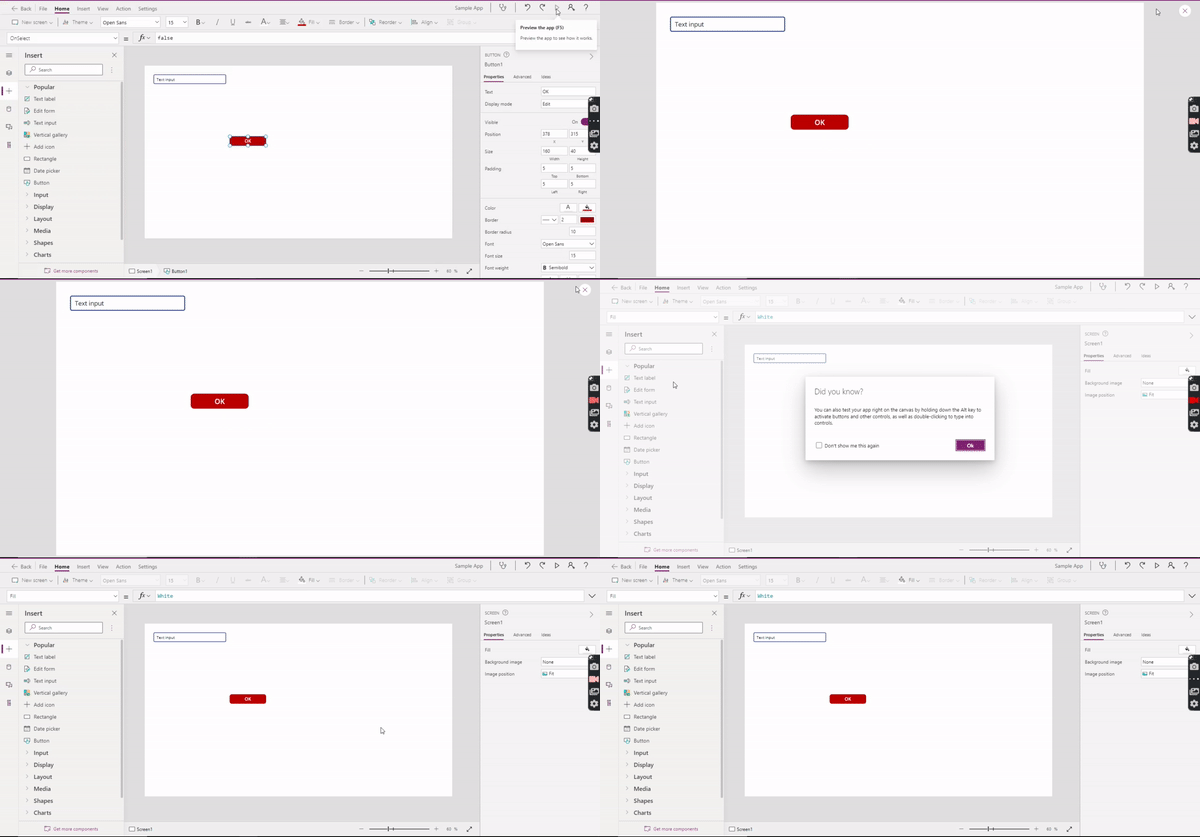
Canvas App - Preview


That's a brief idea on Canvas App. More about canvas app will be available in up-comings posts.

Please reach out if you have any doubts or topics that you'd want me to cover, I will put my effort on it!

Comments

Popular posts from this blog

Database actions - PAD

  POWER AUTOMATE DESKTOP - DATABASE Pre-Requisites Power Automate Desktop Access to database  Under the database action, we have only three sub actions, namely: Open SQL connection Execute SQL statement  Close SQL connection Open SQL Connection The first step is to connect to the database. So, we will use the Open SQL connection action and provide a connection string to establish the connection (the connection string in the video is a sample). When the connection is successful, the connection details is stored in a variable during execution. Execute SQL statement This action can be used to execute SQL queries. Here, I am using select query and the result is stored in a variable of type datatable. Close SQL connection It is a best practice to always close the database connection once the required queries are executed. YAY! BONUS!😮 How to execute a stored procedure using database action? Stored Procedure without arguments Stored Procedure with arguments (Comma separated in...

On Block Error - PAD

POWER AUTOMATE DESKTOP - ON BLOCK ERROR During development, testing or the actual execution of the desktop flows, we might get into errors. When error occurs, we might want the flow to exit gracefully, run another subflow or even set a value a variable. This is exactly why we use On Block Error action for. Here is a quick example on ways to use On Block Error:   We place the other actions within the "On Block Error" and "End" actions: Actions within On Block Error, There are options to Continue Flow Run or Throw Error. Throw Error will throw the error and stop the flow during run-time. If the Continue Flow Run option is chosen, the action can be repeated, we can skip to a Label or end of block or beginning of block or even go to the next action. If we have logical actions like division by 0 or trying to access a out-of-bound index from a list or datatable, then we can toggle on the "Capture unexpected logic errors" option. We also have the option to "...

Microsoft Dataverse & Power Automate - Part 1

POWER AUTOMATE & MICROSOFT DATAVERSE - 1 PRE-REQUISITES Login to Power Automate Create a manually triggered flow In this post, I will be using the data that is available in the Accounts table. In Cloud flow, we can use the dataverse connector and perform multiple actions as required. LIST ROWS IN DATAVERSE Use List rows action to list rows/records from a selected table. Use Apply To Each control to go through each row in the table. Data in the Dataverse table Accounts is shown. In Cloud flow, Use List Rows and Apply to each to get data from dataverse and loop through each row. Test Time: LIST ROWS WITH SELECTED COLUMNS From dataverse table, fetch the selected columns only. Multiple column names can be comma separated. Fetch the logical name of the columns (to be selected) from the Dataverse table. (In my observation, fetching only required rows, reduces the execution time) Enter the logical name of the column in Advanced Options of the List rows action. Test Time: Next: List Rows ...